
Home › Setup Guide
IPTV Setup Guide: Get SmartVPro Running on Any Device
Whatever you watch on, IPTV setup follows the same pattern: install a player app, enter the login details from your welcome email, and let the channel list load. Find your device below.

What You Need Before You Start
- Your SmartVPro welcome email with your username, password and server address.
- A supported device connected to the internet, ideally by Ethernet cable or 5 GHz Wi-Fi.
- About 10 minutes. If you get stuck at any point, message us on WhatsApp with your device model.
Amazon Fire TV Stick and Fire TV
- From the Fire TV home screen, open Find and search for the player app named in your welcome email.
- If the app is in the Amazon Appstore, install it directly. If it is not listed, your welcome email explains how to install it with Amazon’s free Downloader app.
- Open the app, choose Add user or Add playlist, and type your login details exactly as shown in the email.
- Wait for the channels and guide to load, then add your favorite channels for quick access.
For a longer walkthrough with remote-control tips, read IPTV for Firestick.

Android TV, Google TV and Nvidia Shield
- Open the Google Play Store on your TV or box and install a compatible IPTV player app.
- Launch the app and select the option to add a new account or provider.
- Enter your username, password and server address, then save.
- Open Settings in the app to turn on the TV guide if it does not load automatically.
Apple TV, iPhone and iPad
- Open the App Store and install a compatible IPTV player app. The same app usually works on Apple TV, iPhone and iPad.
- Open the app and add a new account with your SmartVPro details.
- On iPhone or iPad, use AirPlay to send the picture to a TV if you prefer the bigger screen.
Samsung and LG Smart TVs
- Open the app store on your TV (Samsung Smart Hub or LG Content Store) and install a compatible IPTV player app.
- Many Smart TV players show a device ID or MAC address on screen. Send it to us on WhatsApp if your app needs us to activate it.
- Enter your login details in the app, or follow the app’s on-screen link to add them from a phone or computer.
Windows and Mac Computers
Install a desktop IPTV player, add a new account with your login details and choose your channels. A computer is also a quick way to check whether a problem is caused by your TV or by your network.
Tips for a Smooth Picture
- Use a cable for the main TV. Ethernet is more stable than Wi-Fi, especially during live sports.
- Restart the device once a week. Streaming sticks run better after a fresh start.
- Keep the app updated. Updates often fix playback and guide issues.
- Lower the quality if needed. If 4K stutters, switch to the HD version of the same channel.
- Check the speed on the TV itself. A phone test next to the router does not tell you what the TV receives.
Your IPTV Setup Checklist Before You Start
A good IPTV setup takes about ten minutes when everything is ready, and much longer when you stop halfway to look for a password or update a TV. Run through this short IPTV setup checklist first.
| Item | Why it matters | How to check |
|---|---|---|
| Welcome email with your login details | You type these into the player app | Search your inbox and spam folder for the SmartVPro email |
| Device software up to date | Old software can block app installs or cause crashes | Open the device settings and look for a system or software update menu |
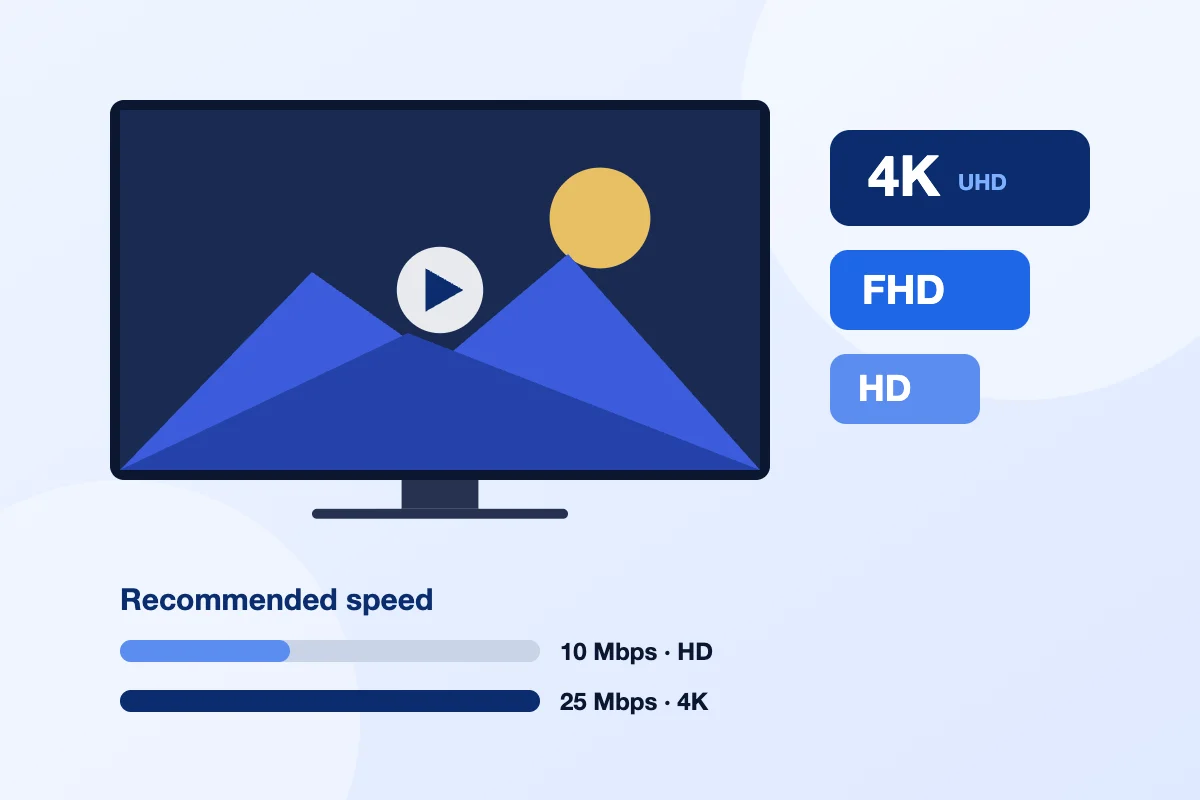
| Internet speed | About 10 Mbps per HD or Full HD stream, about 25 Mbps per 4K stream | Run a speed test on the same Wi-Fi or cable the TV uses |
| Free storage on the device | The player and the TV guide need space to load | Check the storage section in the device settings |
| Your store account sign-in | You need it to download apps from the official app store | Make sure you know your Amazon, Google, Apple, Samsung or LG account password |
| WhatsApp on your phone | Our team answers setup questions 24/7 | Save the support chat from your welcome email |
If you have not bought a plan yet, you can try the full process first with the $1 24-hour test pass. It works on one device and uses the same channels and library as the paid plans.
For a second opinion on what your connection can handle, the FCC Broadband Speed Guide explains how much speed common streaming activities use in a typical home.
How Do You Set Up IPTV Step by Step?
To set up IPTV, open your SmartVPro welcome email, install a compatible IPTV player from your device’s official app store, enter your login details, then wait briefly for channels and the guide to load.

The same basic flow works on almost every device we support. Only the menus and the name of the app store change, so once you know how to set up IPTV on one device, the next one is easy.
- Get your login email. After payment, your login details arrive by email. Activation usually takes about 5 minutes and can take up to 3 hours. Keep the email open on your phone so you can copy the details without typos.
- Install a player from the official app store. Install a compatible IPTV player from your device’s official app store: the Amazon Appstore, Google Play, the Apple App Store, or the Samsung or LG TV app store. Our support team tells you which one fits your device. This is the only part of how to install IPTV that really changes from device to device.
- Enter your details. Open the player and type the login details exactly as they appear in the email. They are case sensitive, so check capital letters and extra spaces.
- Load the channels and guide. The first load can take a minute or two because the player downloads the channel list and the TV guide. Do not close the app while it loads.
- Test a few channels. Open a news channel, a sports channel and a movie to confirm everything plays. If one category is empty, restart the app once before contacting support.
That is how to set up IPTV on a TV, a streaming stick, a phone or a computer. If you are setting up a Fire TV Stick, our Firestick setup guide has extra tips for that device.
IPTV on Smart TV: Samsung and LG in More Detail
Watching IPTV on Smart TV models from Samsung and LG works well, because you do not need an extra box. The main difference from other devices is that these TVs use their own app stores, and the choice of players there is smaller.
Using the Samsung and LG app stores
Samsung TVs use the Samsung app store from the Apps section of the home screen. LG TVs use the LG Content Store. On both, you need to sign in with a free Samsung or LG account before you can install anything.
Some players are not listed in every country or on older TV models. If you cannot find the app our team suggested, send us your TV brand, model number and year on WhatsApp. We will tell you which compatible player is available for that set, or suggest a low-cost streaming stick if the TV is too old.
TV settings worth changing before you watch
- Picture mode: Switch from a bright store mode such as Dynamic or Vivid to Standard, Movie or Filmmaker mode. Live TV looks more natural and less noisy.
- Motion smoothing: Try turning motion smoothing off or to a low level. Some people prefer it for sports, others find it makes live TV look odd.
- Network: Use a network cable if your TV has an Ethernet port. If you stay on Wi-Fi, connect to the 5 GHz band and keep the router close to the TV.
- Auto-updates: Turn on automatic app and software updates so the player and the TV firmware stay current.
- Power saving: Disable any setting that turns off the network when the TV is idle. It can make the player slow to reconnect.
After these changes, restart the TV fully by unplugging it for 30 seconds. Many IPTV on Smart TV problems clear up after a full power cycle, and the settings above help live channels look closer to what you are used to from cable.
How Do You Set Up IPTV for Android TV and Google TV?
IPTV for Android TV works by installing a compatible player from Google Play, signing in with your SmartVPro details, and making sure the box has enough storage and a steady connection.
This covers Android TV boxes, Google TV devices, Nvidia Shield and TVs that run Google TV built in. Learning how to install IPTV on these devices follows the generic flow above, with a few settings that make a real difference.
Settings to check
- Update the system from the About or System menu before you install anything.
- Sign in to Google Play with your Google account so the store can install apps.
- Set the display resolution to match your TV, such as 4K for a 4K set, so the picture is not scaled twice.
- Turn off any battery or power saving mode that limits background data on the box.
Storage
Cheaper Android TV boxes often have little free space. The TV guide and the player cache grow over time, and a full box gets slow. Uninstall apps you do not use and clear the player cache from the Apps section of the settings once a month. Aim to keep at least 1 to 2 GB free.
Wired or Wi-Fi?
A wired Ethernet connection is the best choice for IPTV for Android TV, especially for 4K or live sports. If the box has no port, a USB Ethernet adapter that the device maker supports is a good upgrade. On Wi-Fi, use the 5 GHz band and avoid placing the box behind the TV, where the signal is weaker.
Setting Up the TV Guide and Favorites
Once your channels load, take five minutes to set up the TV guide and a favorites list. This last part of IPTV setup makes daily use much faster than scrolling through 34,000+ channels.
- Load the guide: Most players have a guide or EPG button. The first load can take a few minutes. If the grid stays empty, use the player’s option to refresh or update the guide.
- Check the time zone: If programs show at the wrong time, set the correct time zone on the device and, if the player has one, the time offset in its settings.
- Build favorites: Highlight a channel and use the long press or menu button to add it to favorites. Start with your local network affiliates, news and the sports channels you watch most.
- Hide groups you never use: Many players let you hide international groups or categories. A shorter list loads faster on older devices.
- Use catch-up: On supported channels, the guide shows past programs you can replay. Look for a small replay or clock icon next to the channel.
Not sure which groups to keep? Our US channel guide explains how the local, sports, news and international groups are organized.
How Do I Add a Second Device on a 2-Device Plan?
On a 2-device plan, you install the same compatible player on the second device and enter the same login details from your email. Both screens can then stream at the same time.
You do not need a second account or a new email. Knowing how to set up IPTV on the first device is all you need, and a few points help the second screen run smoothly:
- Add up the speed you need. Two HD streams need about 20 Mbps, and one 4K plus one HD stream needs about 35 Mbps.
- Use a cable on the TV that streams the most sports or 4K, and Wi-Fi on the other.
- Close the player on a device you are not using so it does not hold a connection.
- If you have a 1-device plan and want a second screen, message support on WhatsApp about moving to a 2-device plan.
All plans include the same channels and library and differ only in length and number of screens. You can compare 1-device and 2-device prices on our IPTV subscription plans page.
IPTV Setup Troubleshooting: Fixing Common Errors
Most IPTV setup errors come from four causes: a typo in the login, an account that is not active yet or has expired, a weak connection, or a guide that has not loaded. This table shows the quick fix for each.
| What you see | Likely cause | What to try |
|---|---|---|
| Wrong login or invalid account | Typo, extra space or wrong capital letter | Copy the details again from the email, then retype them slowly |
| Account expired or not active | Plan ended, or activation is still running | Wait up to 3 hours after payment, then check your plan end date with support |
| No channels loading | Slow connection, full storage or an interrupted first load | Restart the device and router, free up storage, then open the player again |
| Guide is empty | Guide not downloaded yet or wrong time zone | Refresh the guide in the player settings and check the device time zone |
| Channels play but freeze | Weak Wi-Fi or too many devices online | Move to a cable or 5 GHz Wi-Fi, or pick a lower quality version of the channel |
If freezing continues after setup, our IPTV buffering fix guide goes deeper into router, speed and device fixes.
How Does WhatsApp Support Help With Setup?
SmartVPro support is available 24/7 on WhatsApp and can tell you which player fits your device, check your login details and walk you through each screen until channels play.
Many customers message us halfway through their IPTV setup, and that is fine. To get help faster, send these details in your first message:
- The device you are using, with brand and model, for example a Samsung TV and its year.
- The email address you used to order.
- A photo or screenshot of any error message.
- What you already tried, such as restarting or retyping the login.
Our team can also check whether a specific channel is in the current lineup before you buy, and explain how to install IPTV on a new TV if you replace your device later. If anything goes wrong in your first week, the 7-day money-back guarantee applies.
Most IPTV setup problems come from a typo in the login details or a weak connection. The same checks apply whether you are learning how to set up IPTV for the first time, adding IPTV on Smart TV, or working out how to install IPTV on a second device. IPTV for Android TV follows the same steps, and our support team can walk you through any IPTV setup on WhatsApp.
IPTV Setup Questions
How long does IPTV setup take?
Most people finish IPTV setup in about 10 minutes once the login email arrives. Activation usually takes about 5 minutes after payment and can take up to 3 hours. The first channel and guide load may add a minute or two.
Do I need a box to watch IPTV on Smart TV?
No, most recent Samsung and LG Smart TVs can run a compatible IPTV player from their own app store. If your TV is older or the player is not listed, a streaming stick or Android TV box is a simple alternative.
What internet speed do I need for IPTV?
For a smooth IPTV setup, plan for about 10 Mbps per HD or Full HD stream and about 25 Mbps per 4K stream. On a 2-device plan, add both screens together, so two HD streams need roughly 20 Mbps.
Is a wired connection better for IPTV for Android TV?
Yes, a wired Ethernet connection is usually more stable than Wi-Fi, especially for 4K and live sports. If your box has no port, a supported USB Ethernet adapter or the 5 GHz Wi-Fi band are the next best options.
Why is my TV guide empty after setup?
An empty guide usually means it has not finished downloading or the device time zone is wrong. Refresh the guide in the player settings, wait a few minutes, and check the time zone. Support can help if it stays empty.
Can I use one IPTV subscription on two TVs?
Yes, if you choose a 2-device plan, two screens can stream at the same time with the same login details. A 1-device plan streams on one screen at a time. Message support to move between plan types.
What should I do if my IPTV login does not work?
Copy the login details from your welcome email again and retype them, checking capital letters and spaces. If it still fails, the account may still be activating. Contact WhatsApp support with your order email for a quick check.
Can I move my IPTV subscription to a new device?
Yes, you can install a compatible player on the new device and enter the same login details. On a 1-device plan, use one screen at a time. Our support team can tell you which player suits the new device.
Can I test the IPTV setup before buying a longer plan?
Yes, the 24-hour test pass costs $1 and works on one device. It lets you check the setup, channels and picture quality on your own TV and internet before you choose a 1, 3, 6 or 12 month plan.
Does SmartVPro help with IPTV setup?
Yes, IPTV setup help is included with every plan through 24/7 WhatsApp support. The team tells you which player fits your device, checks your login details and walks you through the process until your channels play.