
You are reading this guide on IPTV USA, the official SmartVPro website (smartvpro.us). See our IPTV subscription USA plans.
Buffering is the number one complaint about IPTV, and it is rarely random. In our support experience, almost every case comes down to one of a handful of causes inside the home network. Work through the fixes below in order; most people find the problem within the first three.
What Internet Speed Do I Need for IPTV Without Buffering?
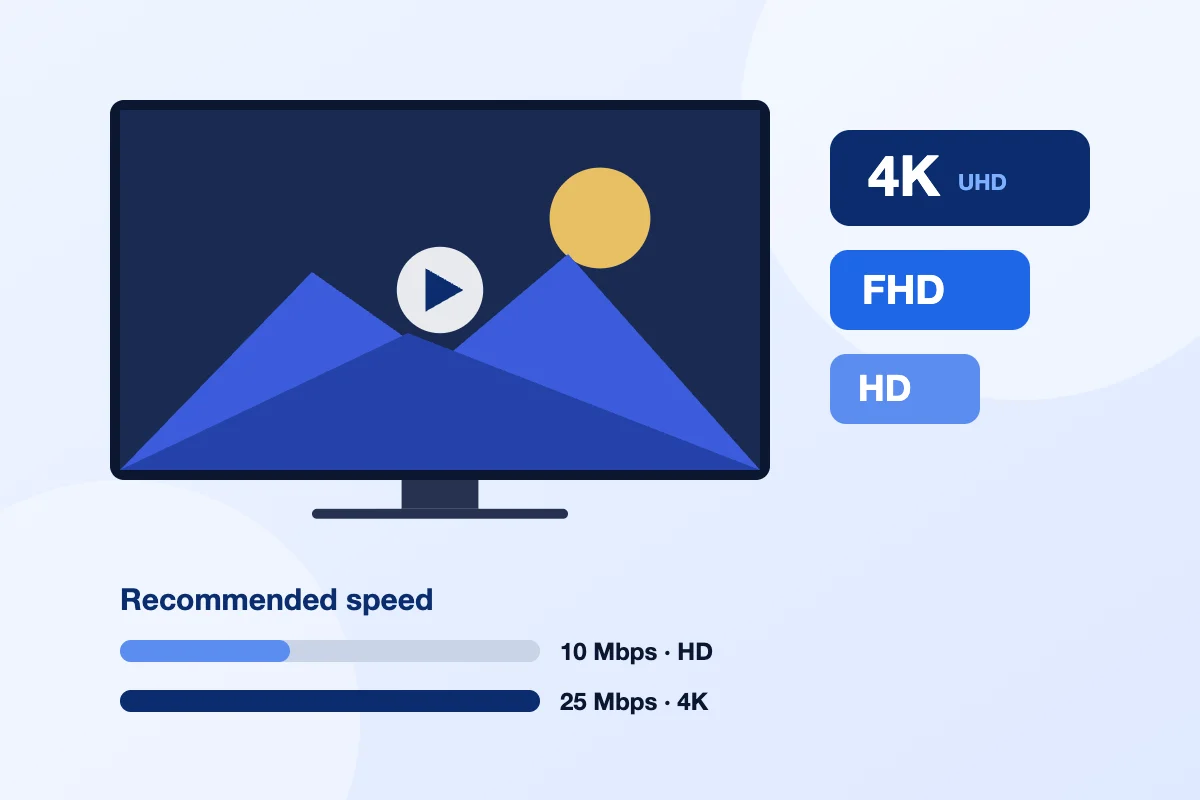
Plan on at least 10 Mbps for each HD stream and 25 Mbps for each 4K stream, measured on the TV itself, plus extra headroom for anything else your household is using at the same time.
| What you are watching | Recommended speed |
|---|---|
| One HD stream | 10 Mbps |
| One 4K stream | 25 Mbps |
| Two HD streams (2-device plan) | 20 Mbps |
| One 4K and one HD stream | 35 Mbps |
Run the speed test on the TV or streaming stick, not on your phone next to the router. Planning to watch in 4K? Our 4K IPTV guide covers the devices and settings it needs. Fire TV, Android TV and most Smart TVs have a free speed test app in their store.
Nine Fixes for IPTV Buffering, in Order
- Restart everything. Unplug the router and the streaming device for 30 seconds. This clears memory and refreshes the connection.
- Use Ethernet for the main TV. A cable removes Wi-Fi interference, the single biggest cause of buffering during live sports. Fire TV Sticks need an inexpensive Ethernet adapter.
- Switch to the 5 GHz Wi-Fi band if a cable is not possible, and move the router out of cabinets and away from microwaves and thick walls.
- Pause other heavy traffic. Game console downloads, cloud backups and 4K streams on other TVs all compete for the same bandwidth.
- Pick the right quality. If a 4K channel stutters, open the HD version of the same channel. It uses a fraction of the bandwidth.
- Free up your streaming stick. Uninstall unused apps and clear the IPTV app’s cache; older Sticks slow down when storage is nearly full.
- Update the IPTV app and the device. Updates often fix playback and memory issues.
- Change the player settings. Many IPTV apps let you switch the video player or increase the buffer size; try the alternative player if one channel keeps freezing.
- Check whether it is one channel or all of them. If only one channel freezes, it is usually that source; send us the channel name and the time on WhatsApp so we can check it.
Does a VPN Stop IPTV Buffering?
Sometimes. A VPN can help if your internet provider slows down video traffic, but it also adds overhead and can make buffering worse on a slow connection, so test with and without it.
If buffering only appears at the same times every evening across all channels, and your speed test looks fine, compare a night with the VPN on and a night with it off. Choose a VPN server close to you and a protocol designed for speed, and turn the VPN off if it lowers your speed below the levels in the table above.
Why Buffering Gets Worse on Game Day
When a big game starts, everyone in your home and your neighborhood is online at once, and your Wi-Fi is under the most pressure of the week. That is why we recommend testing during a live event before buying a long plan. Our breakdown of IPTV vs. cable for live sports covers what to expect from each option.
Still Buffering? Here Is What to Send Us
Send us your device model, the app you use, your speed test result and the channels that freeze. On a Fire TV, the IPTV Firestick setup guide also lists the settings that keep a Stick fast. If you are not a customer yet, every SmartVPro IPTV subscription includes a 7-day money-back guarantee, and you can try it for 24 hours for $1 first.
Why does IPTV keep buffering?
IPTV keeps buffering when video data reaches your screen slower than the player uses it, usually because of weak Wi-Fi, a struggling device, a congested ISP at peak time, or a busy stream.
Every live channel is a steady flow of small video chunks. The player keeps a few seconds of video in reserve, called the buffer. When the flow slows down, that reserve runs out and the picture stops while it refills. Finding the cause means checking four places in order: your home network, your device, your internet provider and the stream itself.
Your home network
This is the most common cause of IPTV buffering. Wi-Fi signals weaken through walls, floors and appliances, so a TV two rooms away from the router may get a small part of the speed your plan promises. Other people in the house streaming, gaming, joining video calls or running cloud backups all share the same connection. Older routers can also struggle with many busy devices at once, even when the internet plan itself is fast.
Your streaming device
Streaming sticks and smart TVs have small processors and limited memory. When storage is nearly full, the app cache is bloated or the device has run for weeks without a real restart, it can drop frames and stall even on a good connection. Heat makes it worse. A stick tucked behind a wall-mounted TV can slow itself down to cool off, which shows up as IPTV freezing after a long viewing session.
Your internet provider at peak time
Your home shares network capacity with other homes in your area. In the evening, and during big live events, that shared capacity fills up. A connection that tests fast at noon can slow down sharply at 9 p.m. If your IPTV keeps buffering only at night or on game day, your internet provider is a likely suspect.
The provider side
Sometimes the issue is the stream itself. A single channel can have a temporary source problem, and very popular live events put extra load on any streaming service. The sign is simple: if one channel stutters while others play smoothly on the same device, the problem is probably that channel, not your setup. Report it so it can be checked.
IPTV buffering fix checklist: step by step
If you want to know how to stop IPTV buffering for good, work through this list in order and test a live channel after each step. Stop when the picture is smooth, and note which step solved it so you know where to look next time.
- Check more than one channel. If only one channel buffers, skip to the section on single-channel problems further down this page.
- Restart everything. Unplug the router and the streaming device for 60 seconds. Plug the router in first, wait until its lights are steady, then power on the device.
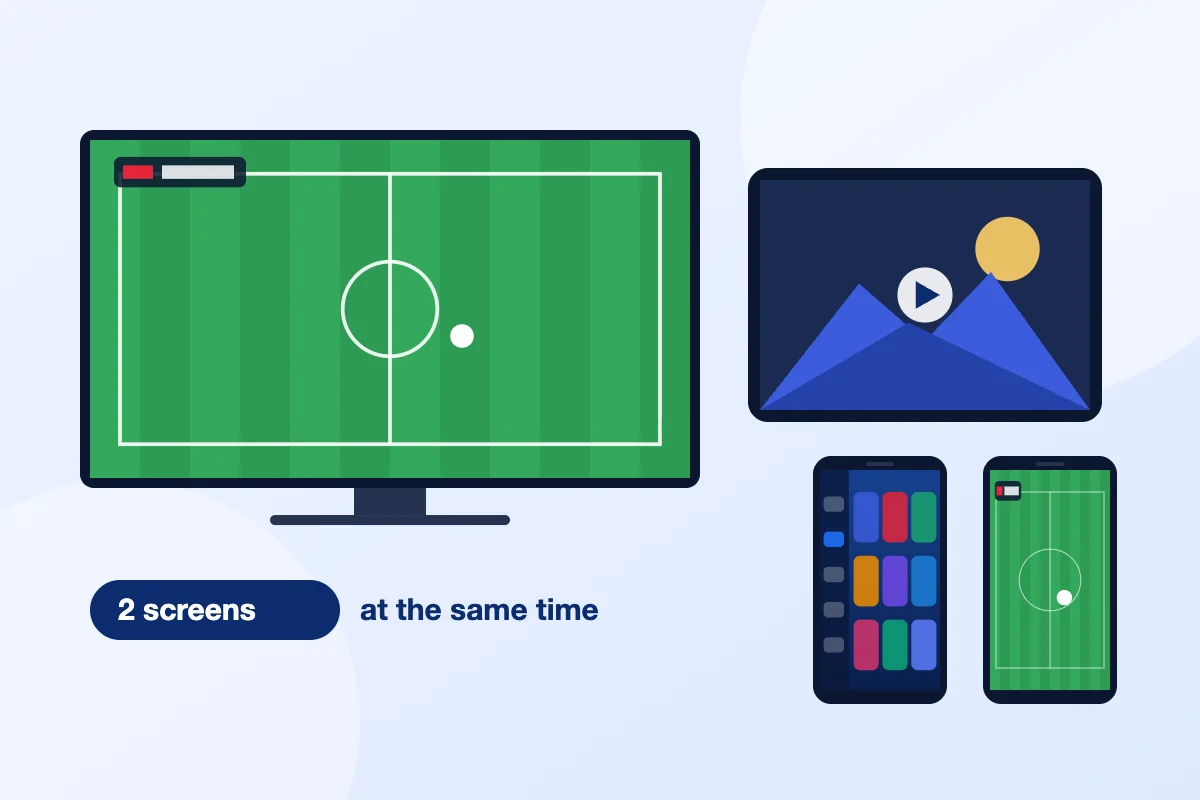
- Run a speed test on the TV device itself. Plan on about 10 Mbps for one HD stream and about 25 Mbps for one 4K stream, and add them together for two screens.
- Pause other heavy use. Stop large downloads, game updates, cloud backups and other video streams for a few minutes, then test again.
- Switch to the HD version of the channel. Many channels come in several quality versions, and HD needs much less bandwidth than 4K.
- Move to 5 GHz Wi-Fi or plug in Ethernet. A wired connection removes most Wi-Fi problems at once.
- Clear the app cache and free up storage. Remove apps you no longer use and keep some space free on the device.
- Update the app and the device software. Updates often fix playback bugs and decoder issues.
- Adjust the player settings. Change the buffer size or decoder mode, one setting at a time.
- Test at a different time of day. If buffering disappears at midday and returns at night, focus on your internet provider.
- Try a second device. If a phone or another TV plays the same channel smoothly on the same network, the first device is the bottleneck.
- Contact support with your results. Notes from the steps above help support find the cause much faster.
The first six steps focus on the home network, where the problem usually starts, so look for your IPTV buffering fix there before you change player settings or contact support.
Is Wi-Fi or Ethernet better for IPTV?
Ethernet is better for IPTV because a cable delivers a steady connection that is not affected by walls, distance or nearby networks, while Wi-Fi speed and stability can change from minute to minute.
Wi-Fi can still work well, especially on 5 GHz with the router close by. This table shows how the common options compare for live TV.
| Connection | Stability for live TV | Best for | Watch out for |
|---|---|---|---|
| Ethernet cable | Highest | Main living room TV, 4K viewing | Fire TV Sticks need an Ethernet adapter |
| Wi-Fi 5 GHz | Good at short range | TVs in the same room as the router or the next room | Range drops quickly through walls and floors |
| Wi-Fi 2.4 GHz | Lowest | Distant rooms where 5 GHz cannot reach | Crowded band, interference from microwaves and nearby networks |
| Mesh Wi-Fi or powerline adapters | Good to fair | Large homes where running a cable is not practical | Results vary with home layout and wiring |
If you get IPTV buffering on only one TV, and that TV is the farthest from the router, the connection type is the first thing to change. A flat Ethernet cable run along the baseboard often costs less than a new router, which makes it one of the cheapest IPTV buffering fix options.
Where should I put my router to stop IPTV buffering?
Put your router in a central, open, raised spot, away from thick walls, metal furniture and microwaves, and as close as practical to the TV you use most for live channels.

Better placement is one of the cheapest answers to how to stop IPTV buffering on Wi-Fi. These changes often make a large difference to the speed at the TV:
- Keep the router off the floor and out of closed cabinets. A shelf at chest height or higher spreads the signal better.
- Avoid placing it behind the TV, next to a fish tank, or beside a microwave or cordless phone base.
- Connect the TV device to the 5 GHz network. If your router uses one name for both bands, look in its settings or app for an option to split them so you can pick 5 GHz.
- Use 2.4 GHz only for rooms where 5 GHz cannot reach. It travels farther but is slower and more crowded.
- If your router is several years old or came free from your internet provider, ask whether a newer model is available. Newer Wi-Fi standards handle many busy devices better.
5 GHz Wi-Fi carries more data but has a shorter range. In an apartment building it also suffers less interference from neighbors’ networks, which is often the hidden reason IPTV keeps buffering in the evening.
How do I fix IPTV freezing on my streaming device?
Fix IPTV freezing on a streaming device by restarting it, clearing the app cache, freeing storage, installing updates and keeping it cool. Small sticks and smart TVs slow down when memory or heat limits are reached.
Restart regularly
Most streaming sticks and smart TVs go into standby instead of switching off, so they can run for weeks without a real restart. A full restart once or twice a week clears memory and stops apps running in the background, and it is often enough to stop IPTV freezing on its own. On most devices you can restart from the settings menu, or simply unplug the power for 30 seconds.
Clear the cache and free storage
Open the device settings, go to the list of installed apps, choose your IPTV app and clear its cache. Do not clear data unless support asks, because that can remove your login. Then uninstall apps you no longer use. Devices with very little free storage tend to stutter, so keep a healthy margin free.
For device-specific menus, see our Fire TV Stick IPTV guide, or the full IPTV setup guide for Smart TVs, Apple TV, Android TV boxes and other devices.
Watch for overheating
A stick plugged straight into the back of a wall-mounted TV sits in a pocket of warm air. If the picture runs fine for a while and then starts freezing, heat may be the cause. Use a short HDMI extender to move the stick away from the TV, and keep set-top boxes on open shelves with space around the vents.
Check power and cables
Some sticks misbehave when powered from the TV’s USB port, which may not supply enough power. Use the wall adapter that came with the device. A damaged or very long HDMI cable can also cause picture drops that look like buffering.
Which player settings reduce IPTV buffering?
The settings that most often reduce IPTV buffering are a larger buffer size, the right decoder mode (hardware or software), and choosing a lower quality version of the channel when your connection is borderline.
Menus differ between players, but most IPTV apps offer similar options under playback or player settings:
- Buffer size. A larger buffer stores more seconds of video before playing, so short dips in speed do not interrupt the picture. The trade-off is a slightly longer wait when you change channels. Try one step up from the default.
- Decoder mode. Hardware decoding uses the device’s video chip and is usually smoother and cooler. If a channel shows a frozen picture while the audio keeps playing, or a black screen, try software decoding for that channel, then switch back if it does not help.
- Video player engine. Some apps let you choose between two or more built-in players. If one stutters on your device, test another.
- Stream quality. Pick an HD or Full HD version on a slower connection, and keep 4K for the TV with the strongest connection.
If IPTV keeps buffering after a change, put that setting back before you try the next one. Change one setting at a time and watch the same channel for several minutes. That way you know exactly which change helped.
Is my internet provider causing IPTV buffering at night?
Your internet provider may be the cause if IPTV buffering appears mainly in the evening or during big live events, while the same channels play smoothly at other times on the same device and network.
To check, run a simple test over a few days:
- Run a speed test on the TV device at a quiet time, such as late morning, and write down the download speed.
- Run the same test between 8 p.m. and 10 p.m. on a weeknight, and again during a major live game if you can.
- Repeat both tests on a device connected to the router with Ethernet, to rule out Wi-Fi.
- Compare the numbers. If IPTV keeps buffering in the evening and the speed drops sharply on a wired connection too, that points to congestion on the provider’s side.
The FCC lists the speeds that common online activities need in its broadband speed guide, a useful reference when you talk to your internet provider. If your evening results fall well below what your plan advertises, call them with your test results. They may find a line fault, replace an aging modem, or suggest a plan that suits a home with several streams.
If you plan to watch big games, test during a live event before you commit to a longer plan. Our IPTV for sports guide covers what to expect on game day.
Why is IPTV freezing on one channel but not others?
IPTV freezing on one channel while others play normally usually means a temporary problem with that channel’s source, not your internet or device, so changing your setup will not fix it.
Use this quick guide to decide where to look:
- One channel freezes, others are fine: try another quality version of the same channel. If that also fails, report the channel name, the time and the quality version to support.
- All live channels freeze, movies and series play fine: live channels are less forgiving than on-demand video, which can load further ahead. Check your speed at that time of day and try a larger buffer size.
- Everything freezes, including other streaming apps: the problem is your home network or internet provider. Start with the restart and speed test steps in the checklist.
- Everything freezes on one device only: that device is the bottleneck. Restart it, clear the cache, check for heat, or test another device.
During major live events, a channel can also behave differently than usual because of heavy demand. If the problem lasts only for that event and clears afterwards, note the time and tell support so they can look into it.
When should I contact support about IPTV buffering?
Contact support about IPTV buffering once you have restarted your devices, tested your speed on the TV and tried another channel, or right away if a specific channel keeps freezing for everyone in your home.
SmartVPro customers get 24/7 WhatsApp support, including help with setup and playback. For a faster answer, send these details in your first message:
- Your device model, for example Fire TV Stick 4K, Samsung or LG Smart TV, or Apple TV
- The app you are using and its version
- Whether the device is on Ethernet, 5 GHz Wi-Fi or 2.4 GHz Wi-Fi
- A speed test result taken on that device, with the time of day
- The names of the channels that buffer, and which version you used: 4K, Full HD or HD
- Whether movies and series also buffer, or only live channels
- Which steps from the checklist you have already tried
A short phone video of the problem can also help. If you are not a customer yet and want to see how live channels play on your own connection, the $1 24-hour test pass lets you check one device before you choose one of the SmartVPro IPTV plans. Every plan comes with a 7-day money-back guarantee, and you can also reach us through the contact page.
Buffering Questions
How do I stop IPTV buffering on a Fire TV Stick?
Restart the stick, clear the IPTV app cache, free up storage and connect it to 5 GHz Wi-Fi or an Ethernet adapter. Power it from the wall adapter, not the TV’s USB port, and move it away from the back of the TV if it runs hot.
Why does my IPTV buffer only at night?
Evening buffering usually comes from congestion on your internet provider’s network, when many homes stream at once. Run speed tests at midday and around 9 p.m. on a wired device. A big evening drop points to the provider, so share your results with them.
Why does IPTV buffer when other streaming apps work fine?
Live TV cannot load far ahead, while on-demand apps download minutes of video in advance and lower quality automatically. A connection that barely copes can look fine in other apps but still cause IPTV buffering. Try the HD version and a larger buffer size.
Does Ethernet fix IPTV buffering?
Ethernet fixes IPTV buffering whenever the cause is weak or unstable Wi-Fi, which is the most common case. It will not help if the problem is your internet provider at peak time, an overloaded device, or a single channel with a source issue.
Does 4K cause more IPTV buffering than HD?
Yes. 4K needs about 25 Mbps per stream, compared with about 10 Mbps for HD or Full HD. If a 4K channel stutters, switch to the HD version of the same channel. Many channels offer several quality versions for exactly this reason.
Will a faster internet plan stop IPTV buffering?
Only if your current speed is too low. If tests on the TV show plenty of speed but buffering continues, the cause is more likely Wi-Fi, the device or a single channel. Test on the TV itself before paying for an upgrade.
Can too many devices on Wi-Fi cause IPTV freezing?
Yes. Phones, laptops, game consoles and cameras all share the same connection and router. Large downloads, game updates and video calls use the most bandwidth. Pause them during live events, or move the TV to Ethernet so it does not compete for Wi-Fi.
Can an old smart TV cause IPTV buffering?
It can. Older smart TVs have slow processors, little storage and outdated apps, which may stutter on live channels. Update the TV software and the app first. If it still struggles, a current streaming stick or Android TV box on HDMI is often smoother.
How do I clear the cache to fix IPTV freezing?
Open your device settings, find the list of installed apps, select your IPTV app and choose Clear cache. Avoid Clear data unless support asks, since it can remove your login. Restart the device afterwards and test a live channel again.
Is IPTV buffering always the provider’s fault?
No. Most IPTV buffering starts in the home, with Wi-Fi, device or bandwidth issues. If one channel freezes on every device while other channels play fine, the source may be the cause, so report it to support with the channel name.
Why does my IPTV keep buffering?
IPTV usually buffers because the TV is not getting a steady stream of data: weak Wi-Fi, other devices using bandwidth, an overloaded streaming stick or a connection below 10 Mbps for HD or 25 Mbps for 4K.
What internet speed do I need for IPTV without buffering?
Plan on at least 10 Mbps for each HD stream and 25 Mbps for each 4K stream, measured on the TV itself, plus extra headroom for anything else your household is using at the same time.
Does a VPN stop IPTV buffering?
Sometimes. A VPN can help if your internet provider slows down video traffic, but it also adds overhead and can make buffering worse on a slow connection, so test with and without it.
Get the next IPTV guide by email
New setup guides, app comparisons and buffering fixes for US viewers – about two emails a month, no spam, unsubscribe in one click.